Sale


Sale!
Turtle Beach Model 6676910
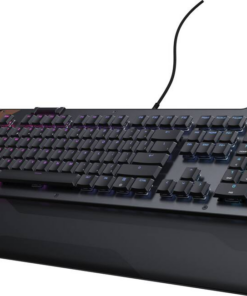
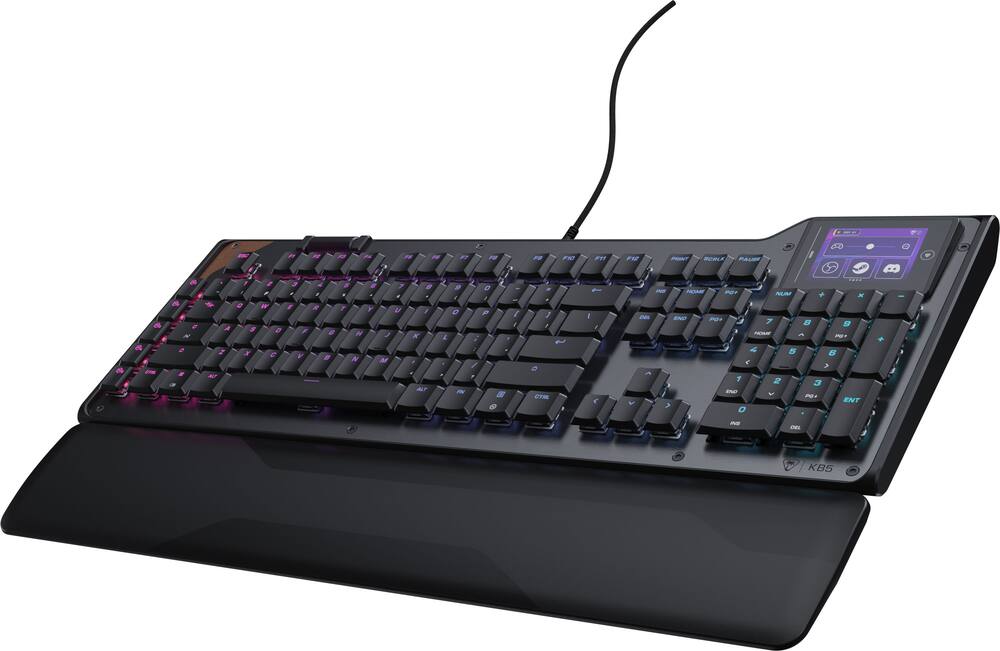
Turtle Beach – Command Series KB5 Full-Size Wired Mechanical Gaming Keyboard for PC – Black
★★★★★★★★★★ (3.8) 20 reviews
Original price was: $149.99.$119.99Current price is: $119.99. Save $30
In stock · Ready to ship
Delivery Wed, Nov 11 – Fri, Nov 13 Free shipping
Secure checkout · Visa · Mastercard · Amex · Discover · PayPal
Questions? Talk to a product specialist
(888) 519-3048
- Free shipping $60+3–5 business days
- 30-day returnsMoney-back guarantee
- Brand-newManufacturer warranty
- Ships from the USColumbus, OH
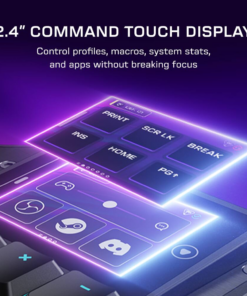
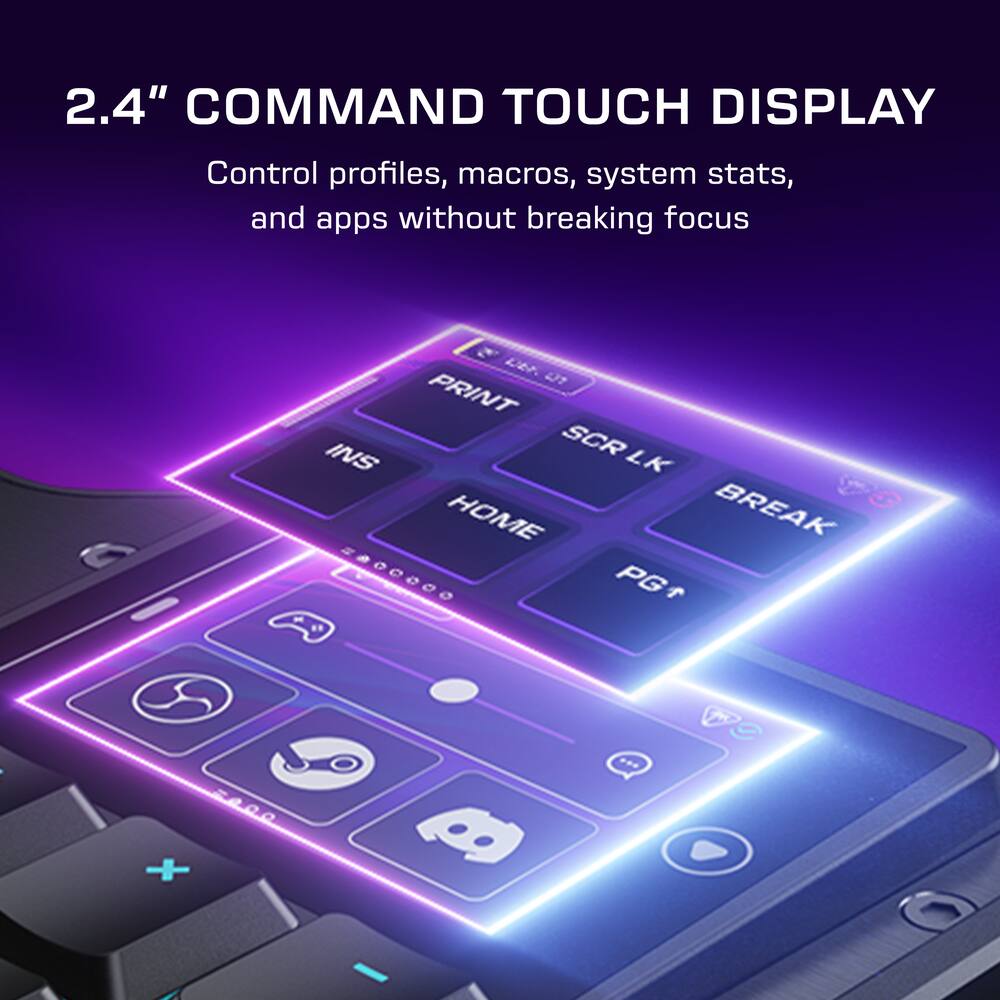
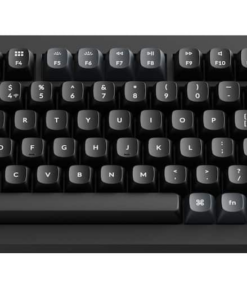
- 2.4” Command Touch Display Take control without breaking focus.
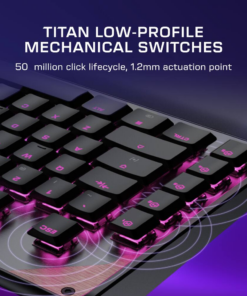
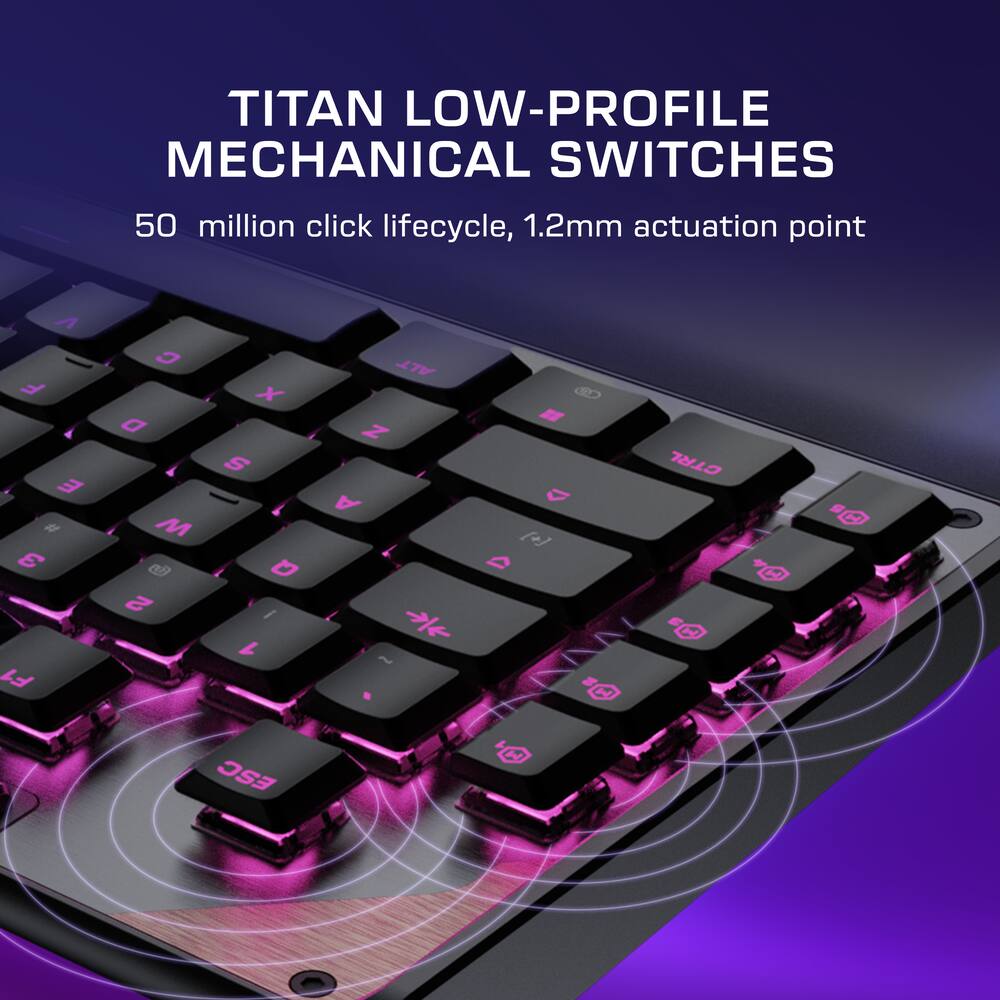
- Customize profiles, trigger macros, monitor system stats, and manage audio or apps directly from the Command Touch Display.Titan Low‑Profile Mechanical Switches Titan low‑profile mechanical switches actuate at 1.2mm with a 3.1mm total travel and a 50‑million‑click lifecycle, enhanced by pre‑lubed switches and stabilizers.Premium Double Shot PBT Keycaps Premium double‑shot PBT keycaps resist shine and wear while delivering a refined tactile feel and balanced acoustics.
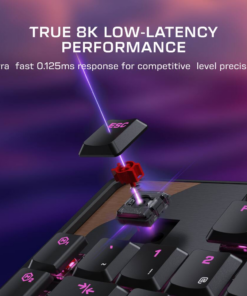
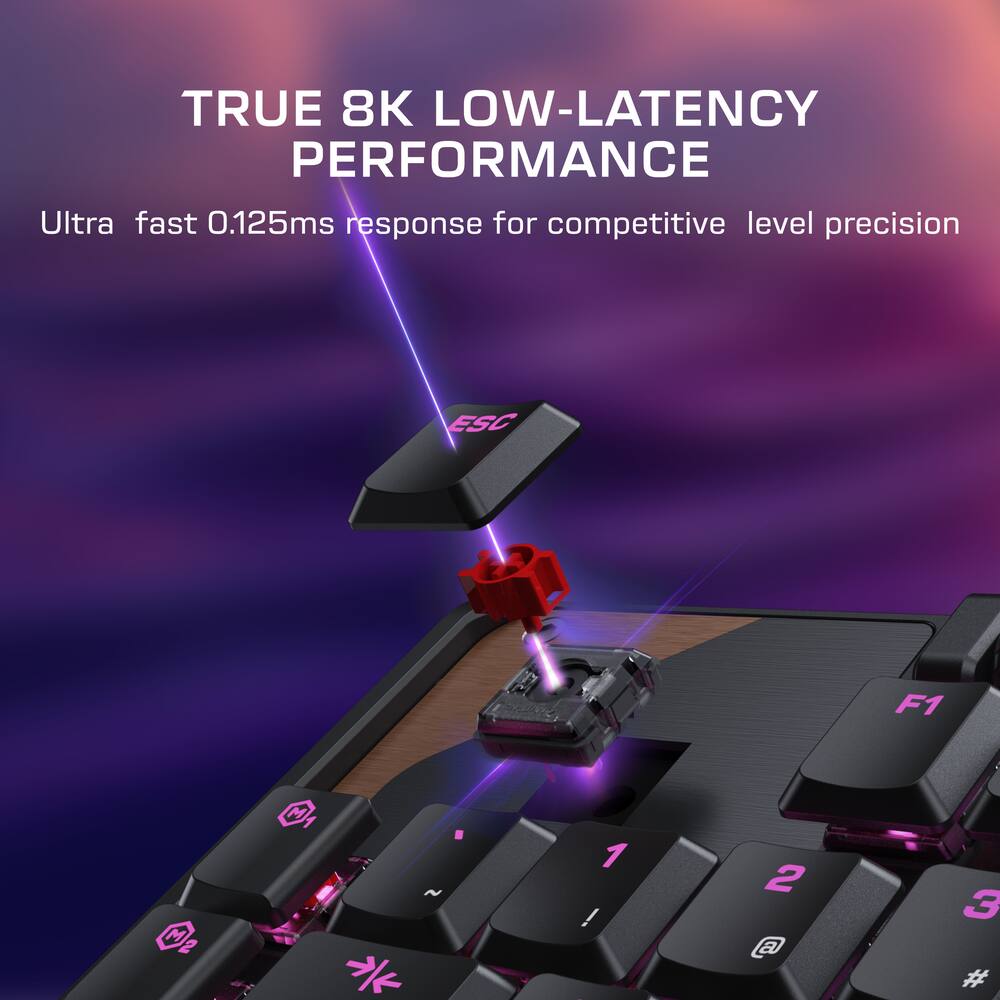
- Additional textured WASD keys provide added grip for confident control.ReacTap SOCD The technology prioritizes the most recent directional input between two keys, enabling smooth, continuous movement with faster, more precise counter‑strafing and directional control.True 8K Low‑Latency Performance True 8K polling rate and 0.125ms latency enable response up to 8x faster than standard keyboards for fast, precise, low‑latency input.Low‑Profile Design Low‑profile switches and keycaps deliver smooth, precise input, paired with a slim 27mm/1.06in aluminum‑reinforced chassis for lasting comfort and durability.Extended Form Factor A full-size extended layout with a numpad and five macro keys delivers expanded control without breaking your flow.Volume Barrel A top‑mounted clickable volume barrel enables fast media control with instant mute.Per‑Key RGB Illumination Fully customizable per‑key RGB lighting powered by Swarm II for a cohesive, personalized setup.Advanced Customization with Swarm II Software Advanced customization for the Command Touch Display, profiles, RGB lighting, macros, and performance tuning.
Key specs
- Weight
- 2.42 lbs
- Dimensions
- 6.89 × 18.78 × 1.06 in
- Brand
- Turtle Beach
- Model Number
- TBK-1005-01-US
- Product Name
- Command Series KB5 Full-Size Wired Mechanical Gaming Keyboard for PC
- Color
- Black
- Lighting Type
- RGB
- Weight
- 2.42 lbs
- Dimensions
- 6.89 × 18.78 × 1.06 in
- Brand
- Turtle Beach
- Model Number
- TBK-1005-01-US
- Product Name
- Command Series KB5 Full-Size Wired Mechanical Gaming Keyboard for PC
- Color
- Black
- Lighting Type
- RGB
- Customizable Lighting
- Yes
- Numeric Keypad
- Yes
- Touchpad
- Yes
- Keyboard Type
- Gaming
- Palm Rest
- Yes
- Spill Resistant
- No
- Keyboard Features
- 2.4” Touchscreen, Titan Low-Profile Switches, True 8K Polling, RGB Lighting, Double Shot PBT Keycaps
- Foldable
- No
- Keycap Material
- PBT
- Maximum Number of Memory Profiles
- 5
- Form Factor
- Full-size
- Number Of Keys
- 109
- Keyboard Technology
- Mechanical
- Dedicated Macro Keys
- Yes
- Key Switch Behavior
- Linear
- Rollover
- Full-key
- Multimedia Keys
- Yes
- Actuation Force
- 42gf
- Connection Type
- Wired
- Wired Connectivity
- USB-A
- Cable Length
- 5.9 feet
- Detachable Cable
- Yes
- Operating System Compatibility
- Windows
- Plug and Play Operation
- Yes
- System Requirements
- Swarm II
- Product Height
- 1.06 inches
- Product Width
- 18.78 inches
- Product Depth
- 6.89 inches
- Product Weight
- 2.42 ounces
- Mouse Included
- No
- Warranty - Parts
- 1 year
- Warranty - Labor
- 1 year
- League/Association
- Not Applicable
- UPC
- 840454401820
- 2.4” Command Touch Display
Take control without breaking focus. Customize profiles, trigger macros, monitor system stats, and manage audio or apps directly from the Command Touch Display. - Titan Low‑Profile Mechanical Switches
Titan low‑profile mechanical switches actuate at 1.2mm with a 3.1mm total travel and a 50‑million‑click lifecycle, enhanced by pre‑lubed switches and stabilizers. - Premium Double Shot PBT Keycaps
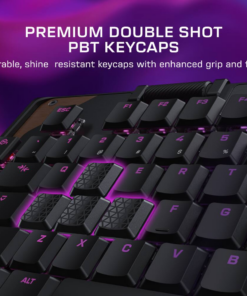
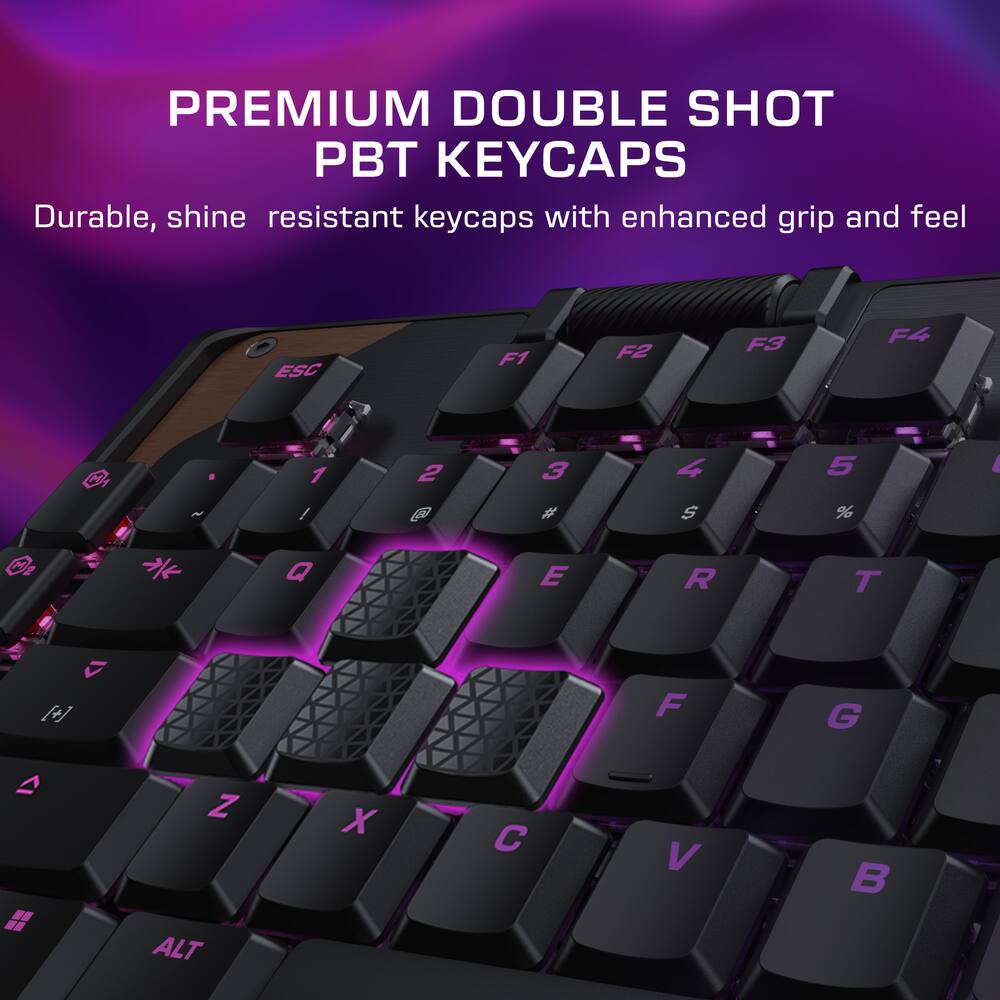
Premium double‑shot PBT keycaps resist shine and wear while delivering a refined tactile feel and balanced acoustics. Additional textured WASD keys provide added grip for confident control. - ReacTap SOCD
The technology prioritizes the most recent directional input between two keys, enabling smooth, continuous movement with faster, more precise counter‑strafing and directional control. - True 8K Low‑Latency Performance
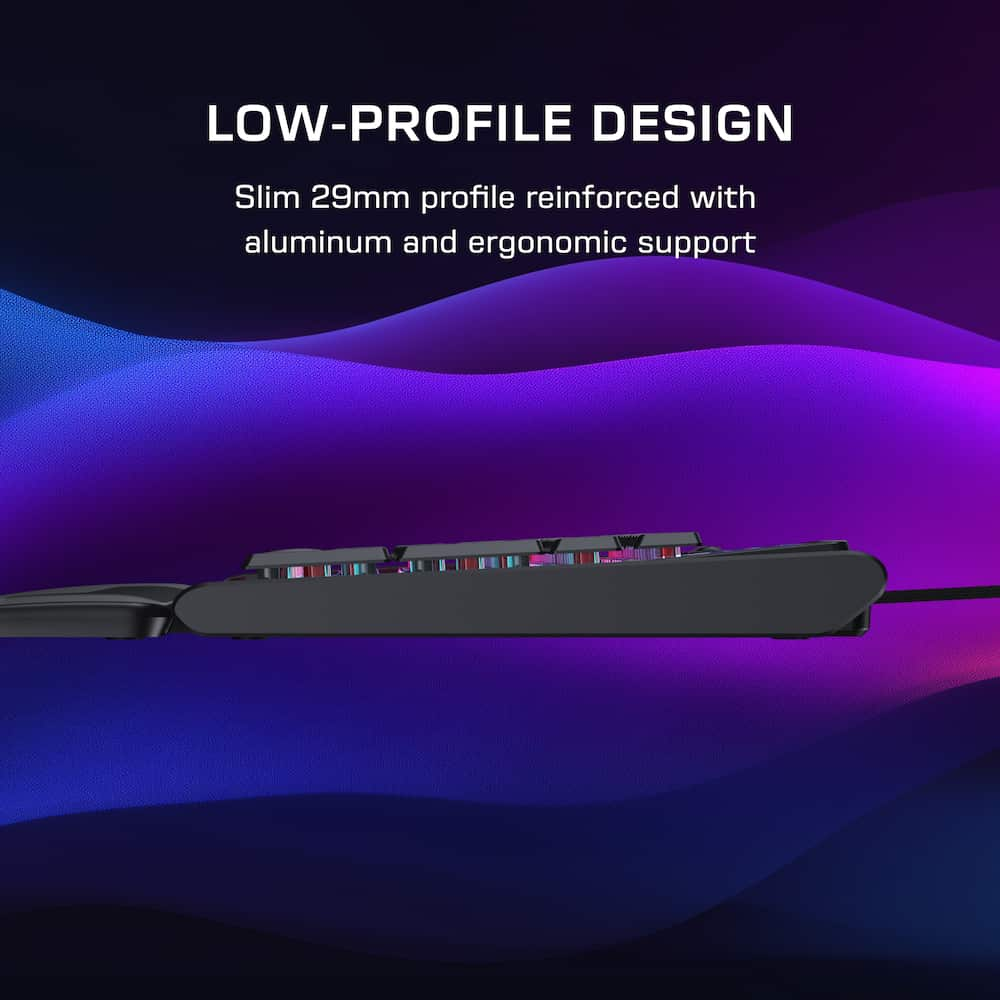
True 8K polling rate and 0.125ms latency enable response up to 8x faster than standard keyboards for fast, precise, low‑latency input. - Low‑Profile Design
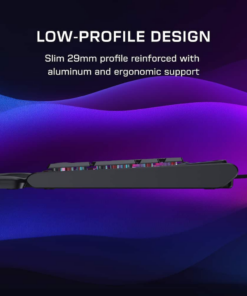
Low‑profile switches and keycaps deliver smooth, precise input, paired with a slim 27mm/1.06in aluminum‑reinforced chassis for lasting comfort and durability. - Extended Form Factor
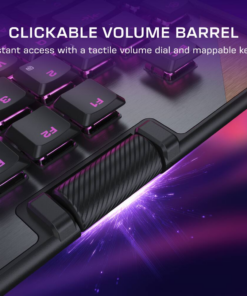
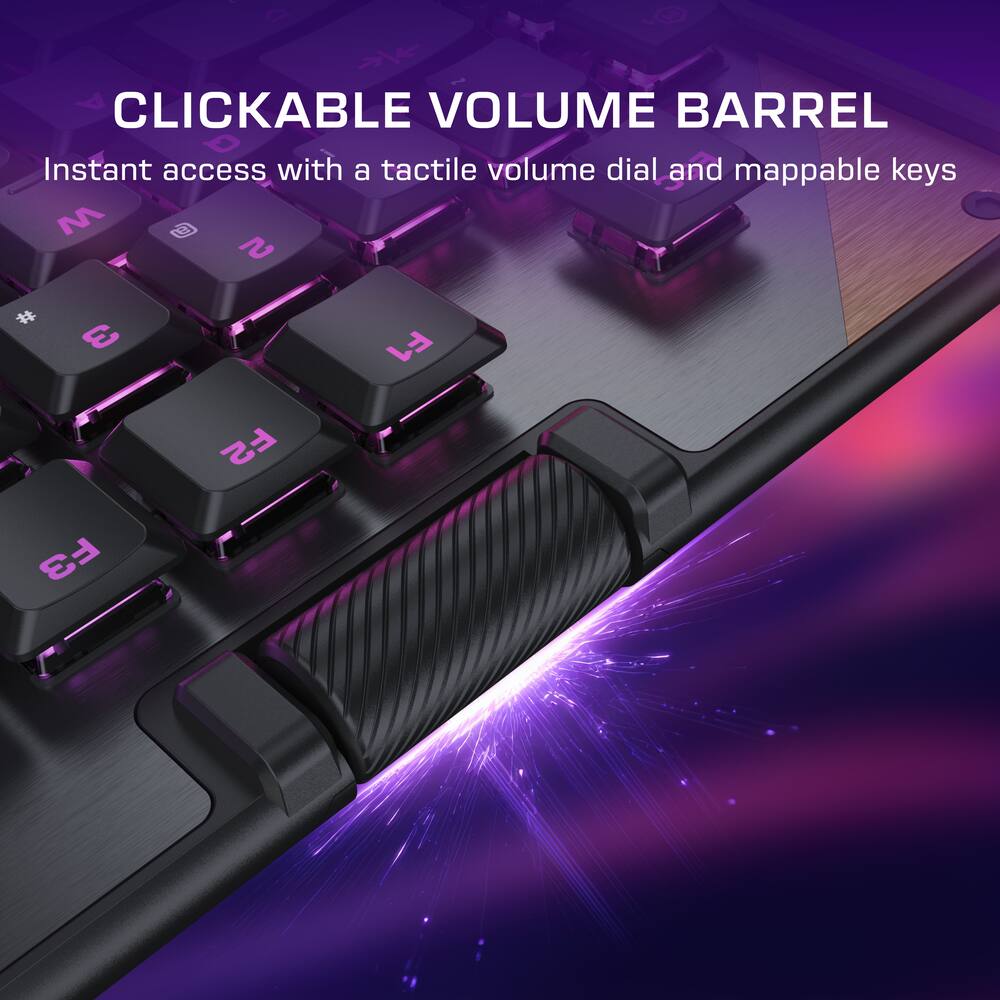
A full-size extended layout with a numpad and five macro keys delivers expanded control without breaking your flow. - Volume Barrel
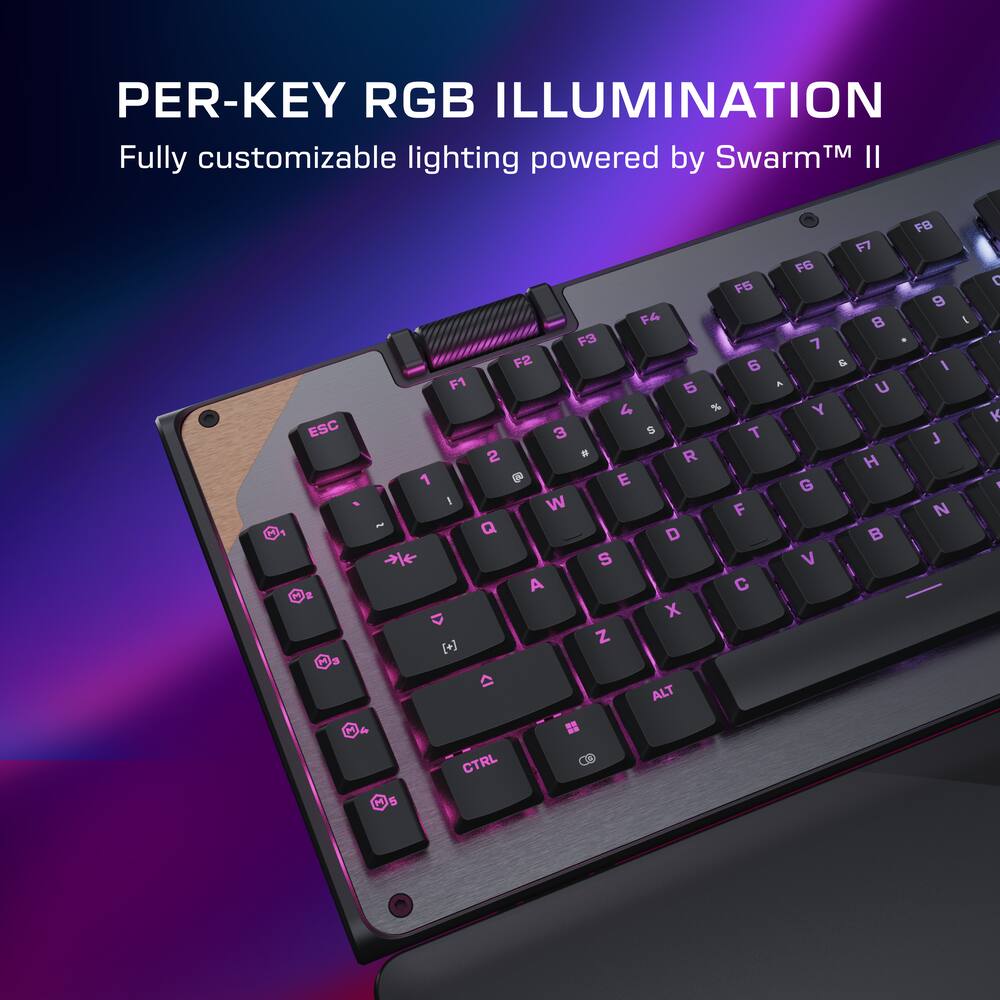
A top‑mounted clickable volume barrel enables fast media control with instant mute. - Per‑Key RGB Illumination
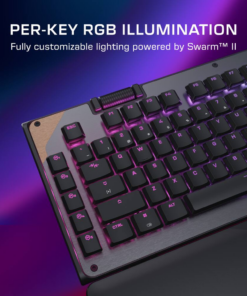
Fully customizable per‑key RGB lighting powered by Swarm II for a cohesive, personalized setup. - Advanced Customization with Swarm II Software
Advanced customization for the Command Touch Display, profiles, RGB lighting, macros, and performance tuning.
Standard US ground delivery is $5.49 and arrives in 3–5 business days. Orders over $60 ship free. Returns are accepted within 30 days of delivery.
dharr18 (verified owner) –
Too many issues – The keyboard looks great. The build is solid. The screen is very clear. The keys have great travel and give a great feel for typing.
BUT…
I give this a 3 star based on potential not actual results. Read the pain below.
I had many issues. First firmware update bricked the keyboard. The keyboard was not even recognized by Windows. To bypass this I unplugged the keyboard, held down the escape key while plugging it in, then holding escape for 5-10 seconds as I connect the USB cable to reset the keyboard.
After that Windows recognized the keyboard but it did not light up. I had to go into the Swarm II app under the device manager tab, I had to reset the keyboard under the three dots menu next to the device. After that I rebooted the system.
After reboot I uninstalled the swarm II app and rebooted again.
After reboot I was getting consistent errors from Swarm II even though it was uninstalled. I ended up having to restore Windows to a previous restore point. Unfortunately, that restore point was after I installed Swarm II and I had to reset the system.
After resetting the system, I created another restore point and installed the Swarm II software.
This time, the firmware update worked without bricking the keyboard.
After this the keyboard worked for about a day. I hooked it up to my KVM so I could use for work and home. I started having issues with my work laptop and my home laptop where the keypresses were delayed by seconds then one key will spam until the keyboard is disconnected. This happened with or without the KVM in between the systems and is completely random.
Support said the KVM could be causing the issue, but I have the keyboard connected direct to each laptop and having the same issue with a direct connection. Initially I notice while in a Teams meeting and trying to type in another window. Support also blames VPN, but I do not use a VPN at home. Removing everything they ask me to remove and still having the issues.
I have had the keyboard for a week and I am still waiting on subsequent responses from support. I am pretty certain it is an issue with the hardware, maybe internal memory, but it could be firmware or software issue as well.
In Swarm II if I manually check for software updates it tells me there is one available. I download. Install. and the version never changes. I check again, it tells me there is a new software update. Rinse repeat.
As for shortcuts, when the keyboard is not flaking out, Word and Excel only work with the full Office applications installed. If you use 365, it opens the installed full version and not the 365 version. You get errors.
As for other widgets. The volume slider is wonky. Mute and silence work sometimes and not consistently. The only one I have used that is consistent is opening Calculator. This makes the touch screen less than anticipated and almost useless.
The physical volume roller is in a weird location on the keyboard. Rather than in a corner or centered, it is about 1/6 of the way across the keyboard above f2 and f3. It just feels unnatural.
My entire experience has been poor with the keyboard.
The hardware is very solid. The firmware and software need work. Luckily software and firmware issues can easily be corrected with time. I am giving the keyboard a 3 star rating because it has potential to be an above average keyboard. The software and firmware need a lot of work to earn the 3 stars at this point.
Be warned, that support will call out KVM, hubs, docking stations, VPNs and other software that may control lighting on other devices you own. If these are legitimate issues you really are limited since Windows will control lighting. Any maker of a mouse, headset or microphone with RGB will control lighting. Many monitors will control lighting. Many laptop vendors have lighting controls and desktop makers also have lighting controls. If that breaks the keyboard, then drop this to a 1 star rating.
I can almost understand the KVM, but I have had zero issues with any other keyboards or other devices I use with my KVM. This includes the use of a portable monitor with the KVM and had no issues. The KVM supplies more than enough power for everything else I have used.
Until software and firmware issues are fixed, I can’t recommend this keyboard.
Beradon (verified owner) –
Decent keyboard, with specific caveats – I’m a hardcore gamer and PC builder. I have built at least 50 PCs for myself and others in my life, all of which have been high end gaming machines or personally for other uses such as a home server. In that time I’ve used a significant number of different keyboards, from the very cheap to the very expensive
Packaging:
To start, it’s packaged like every other keyboard out there, nothing really special here, it has the keyboard, cable and some literature.
Use:
Here’s the interesting piece. It is a gaming keyboard, there’s no denying that, it runs in conjunction with the Turtle Beach SWARM II application which also controls my mouse. In general it’s decent, I’ve not had any glaring issues with it. You can set up your macros and manage lighting and effects. It’s decent but doesn’t do anything groundbreaking. The keyboard itself uses the thin chiclet style keys rather than full size keys which are not my favorite. In use the travel is smooth without any clickyness, and it is responsive, for the most part.
Here’s where the issue lies though. This keyboard has “boot up time” you can see it happening when your computer powers on, and strangely even after the screen lights up it is not always ready to accept input, this is important because I was using this to troubleshoot a new PC build and frequently it was not ready to accept input before the DEL to enter the BIOS was gone from the screen and would require me to reboot it again (and since power was not lost to the keyboard on reboot, it would not go through the reboot cycle and it would take the DEL in time). In addition if you reboot your PC repeatedly sometimes the keyboard, while appearing to be on and operational, wont let you input any commands. In that case I’ve had to pull the cable and put it back in to get it to work. I thought this was just an issue with a single one of my PCs but it happened on multiple PCs (I tested this because it was a strange behavior).
In gaming and normal use it works great without any instability or issues, it just seems to be repeated reboots that causes the problem.
Overall:
Good keyboard, fun to use if you understand the minor issues it has for repeated reboots, hopefully a firmware update comes out to address this.
JediPy (verified owner) –
Really sleek keyboard with advanced features! – This keyboard just looks really sleek.It has this really cool gunmetal looking gray and the top of the keyboard just looks really premium and well built while also being super light and low profile. It also has a detachable wrist rest that is super comfortable. It is only wired but that trade off results in super low latency when gaming. There is no discernible lag which is perfect for when even a millisecond of lag counts.
The mechanical keys are also super responsive and feel very high quality. The volume barrel at the top of the keyboard also looks really awesome and is also really functional. The keyboard itself is plug and play on Windows 11. It has a touchscreen that allows you to customize your keyboard as long as you install the companion software. It’s a really nice touch to an overall really great gaming keyboard. The design doesn’t end on what’s visible though – the underside of the keyboard also has a design print on it. No detail was overlooked. The keyboard is also full size
Overall, I highly recommend this keyboard to any gamer looking for a smooth and near-zero lag gaming experience.
Shaun (verified owner) –
Decent Keyboard with Mediocre Software – The Turtle Beach KB5 keyboard is a great keyboard for those gaming and also doing a little more, while purchasing on a budget. The main star of this keyboard for me is the built in touch display. While being a full size keyboard this might not be the best choice for those just gaming, but its perfect for people like myself who want the number pad and the ins/del keys.
Pros
– Built in Display
– Short actuation distance
– Pleasant softer mechanical switches
Cons
– Turtle Beach Software
– Missing features of higher end keyboards
The build quality of this keyboard felt pretty nice. Solid plastic body, light enough weight but not too light. The keys all felt really responsive and springy, while having a satisfying press. Not clunky like other mechanical boards, but didn’t feel like a membrane keyboard. The included cable was of nice length and material. The included detachable wrist pad is very comfortable. The volume bar being clickable was a nice addition as well as satisfying to use.
As far as features go, this is a pretty straight forward device. The touchscreen has built in controls for numerous things like playing music and such. Its also setup so that you can create your own macros for whenever you’re using certain programs. I didn’t get too heavy into using it yet, but I could see it being quite handy. Outside of that, its your typical keyboard. Its lacking features like Rapid Triger, hall effect, adjustable actuation. But it also comes in much cheaper than most keyboards that do that don’t include a touchscreen.
The only real problem I had with this keyboard was the software. Swarm II just feels like it has a long way to go to compete with other peripheral software. It simply lacks a lot of features that you’d find elsewhere. On the other hand, its very simplistic, its very straightforward with what it offers. If it weren’t for the touchscreen I wouldn’t have installed it at all. The biggest issue with the software though was its inability to install firmware updates on the keyboard. No matter what I tried, with support or in my own troubleshooting, could I get the keyboards firmware update to install. The keyboard is working fine so far, so its not a big issue, but still something to be concerned with.
Emmanuel (verified owner) –
New to Turtle Beach keyboards and I’m a fan! – First time getting to try a Turtle Beach product, and after a couple of weeks of testing, I’m pretty happy with this keyboard. My previous experience with keyboards hasn’t been mixed, and the Turtle Beach Command Series really impressed me. For me personally, it covers everything that I look for in a gaming keyboard while still having a nice and clean look when not being used.
The keys feel great and responsive. I personally don’t use it for typing or work, I just use it for gaming, and it feels fast and quick. I mostly play Halo Infinite and Warzone, and everything feels precise with no delay or missed inputs.
I can’t do the mini keyboards, and so I really like having a full-size keyboard with some additional control buttons. I am not into many of the apps it suggests and so I can’t speak too much on those features, but the volume knob is definitely nice to have.
The RGB lighting looks is probably one of the areas that I was surprised at the quality and the brightness. I love some lighting in the night gaming sessions, and this keyboard compliments my whole gaming set up. Nothing about this keyboard feels like corners were cut, so Turtle Beach is giving me a first good impression.
Some people might not like that this is a wired keyboard, but honestly my last keyboard was wireless, and I found myself always connecting the cable for competitive games and then for daily daks, the keyboard had input delays and so I always just connected it anyways. I learned that wired keyboards are probably the way to go, and so for me this is not really a downer.
Overall, I am enjoying the KB5 from Turtle Beach. From the feel to the looks, it’s a great gaming keyboard and it performs for my gaming sessions. It’s an easy 5/5 for me
rtbestbuy (verified owner) –
Versatile But Flawed Gaming Keyboard – The Turtle Beach Command Series KB5 keyboard is an full size gaming keyboard that is highly configurable, with a small configurable touchscreen that takes the place of many special purpose keys. There are also five macro keys on the far left side. Lighting is per key and also highly configurable. Nicely, some configuration is possible using the keyboard alone, although for full configuration the Turtle Beach Swarm II software is required. Another nicety is that the keyboard cable is a detachable USBA to USBc cable. There is a roller at the top of the keyboard for volume and mute (by pressing it).
Out of the box there is the keyboard, a USBc to USBa cable, detachable wrist rest, 4 extra keycaps & puller, and quick start guide. Setup was quick: attach the cable, plug the keyboard in, and download the Swarm II software. The wrist rest attached firmly enough, can be easily detached for travel and was comfortable enough. The keyboard was a bit fiddly to start, but after a (mandatory) update from Swarm II it was fine. The touchscreen comes with a startup nag flag to download the Swarm II software, but thankfully that can be programmed for other functions. The Swarm II interface is not the most friendly or intuitive interface, but once you get used to it, it’s ok. It does have a fairly large footprint since it can control all Turtle Beach accessories.
Programming is awesome! Their are 5 profiles that can be separately programmed for different applications or games. Not only can the macro keys be programmed, but many of the other keys can be programmed for secondary functions in combination with a ‘function’ key. There are a number of macros and key assignments for popular games already available in the Swarm II software.
In use, both with games and general use, I had issues with the key operation. There is NO tactile feedback to the keys. The keys are so sensitive that resting my fingers on the keys was sometimes enough to trigger unwanted keystrokes. With about 1mm of travel to trigger and no feedback until the key hits the bottom of the travel, I found my hands getting tired trying to hover over the keys. Another problem had to do with real estate. The keyboard is so large (2″ wider and 1″ deeper) than a standard full sized keyboard. In spite of the size, the macro keys are too close and not different enough from the standard keys. More than once, I found myself hitting the macro keys next to the shift and control keys on the right by accident because of the reach.
The Turtle Beach KB5 gaming keyboard is a tremendously configurable keyboard with a nice useable touchscreen interface. Just make sure the key feel and spacing works for you.
Olive (verified owner) –
Great gaming keyboard with touchscreen – The first thing that stood out to me with the Turtle Beach Command Series KB5 is that this isn’t just another mechanical gaming keyboard with RGB added to it. The 2.4-inch Command Touch Display, dedicated macro keys and full-size layout give it quite a bit more functionality, and after spending some time with it, I can see the appeal for both gaming and everyday PC use.
I personally prefer a full-size keyboard because I still use the number pad, so I like that Turtle Beach didn’t sacrifice it to make room for the display. You also get five dedicated macro keys along the left side. The touchscreen is probably the feature that makes the KB5 most interesting. It can be customized for shortcuts and macros, changing profiles, controlling media and displaying system information. I like the idea of having those controls directly on the keyboard instead of constantly opening another program or remembering another keyboard combination.
The Titan low-profile linear mechanical switches are another feature I like about the KB5. They have a 1.2mm actuation point and 3.1mm total travel, and the lower-profile design gives the keyboard a different feel from a traditional tall mechanical board. Turtle Beach also uses double-shot PBT keycaps and includes a separate set of textured WASD caps. That’s a small addition, but it’s useful for gaming and they can easily be swapped.
This keyboard supports true 8,000Hz wired polling, full-key rollover and anti-ghosting. It also has RGB lighting, onboard memory and multiple customization options through Turtle Beach’s Swarm II software. I particularly like having the five physical macro buttons in addition to what can be assigned through the touchscreen. The clickable metal volume barrel is another control that I found convenient to have directly on the keyboard.
There are a few things I would consider before buying it. This is a large keyboard, especially with the five macro keys and touchscreen to an already full-size layout, so desk space is something to keep in mind. It’s also wired. At this price I can understand someone wanting wireless as an option, even though I personally don’t mind a wired connection on a desktop gaming setup. The detachable palm rest is useful, but the overall construction doesn’t feel quite as premium in every area as I would expect at this price.
The touchscreen is also something I think you’ll either make a lot of use of or barely use at all. If you take the time to customize shortcuts, macros and profiles, it adds something genuinely different to the keyboard. If you’re only looking for a basic mechanical gaming keyboard, you’re paying for functionality you may never really use.
Overall, I think the KB5 is good for someone who wants a full-size mechanical keyboard and likes having extra controls available without adding another device to the desk. I especially like the combination of the number pad, five dedicated macro keys and customizable touchscreen rather than having to choose between them. It’s comfortable for regular PC use while still having the responsiveness and customization I want for gaming. There are less expensive mechanical keyboards if those extra features aren’t important to you, but the KB5 offers a combination of features that you don’t see on most standard gaming keyboards.
veritech13 (verified owner) –
Sleek Keyboard, Useful As Well – Setup:
It was very easy to set up, literally plug and play. It took about 10min to setup and customize. I installed it and was able to download the SWARM II software and update the firmware in that time. I customized the screen so that I can have a mix of productivity, media control and screenshot/record. It was a quick draft style customization but it was pretty simple.
Build:
It has a very solid build, the keyboard as zero flex, it is lightweight enough that gives it a modern sleek look without compromising on the quality. The wrist pad is very comfortable, it’s surprising how comfortable it considering it is plastic and not a cushion. It attaches easily and is a nice large enough shape that provides support.
Typing:
The actual keys have a very premier feel, the travel is smooth, quiet with a satisfying click. The spacing of the keys, the media programmable keys are spaced very conveniently and out of the way to eliminate accidental pressing. The ability to program the macro keys is always useful and the inclusion makes the keyboard that much more useful.
Touch Display:
The display is a little gimmicky but surprisingly useful, I programmed it to do screenshots/screen record, multimedia controls and shutdown. I do catch myself reaching for the screen more often than I thought I would.
Controls:
The volume barrel style control is very easy to use, perfectly placed and a breeze to use.
RGB/Software:
The software is very easy to use; it isn’t as easily customizable as other software. To me I did find a bit of a learning curve to customize it to my taste. Overall, its easy software to assign macro functions and button re-assignment. There are also templates for the screen and pre-loaded functions depending on the game being played.
Negative:
I can’t say I have come across a true negative, a manual or guide to the software would be nice but that might be my preference and what I am used to
Overall:
I think any tech enthusiast who likes to have the modern new toys and loves the aesthetics of sleek modern devices will love this keyboard. I think a gamer or social media user will also love the versatility and flexibility of the assignable keys and functions to enhance gameplay or content creation.
AngelM (verified owner) –
A keyboard that looks, feels premium, customizable – The Turtle Beach Command Series KB5 is a full-size mechanical gaming keyboard that has a bit of a retro-industrial styling and with having many ways to customize it as a modern keyboard. Made for gamers, professionals as well as everyday use.
The KB5 looks great with its metal frame, great looking accent color and some exposed screws. It is a full-size keyboard with a complete number key. The kickstands help adjust its height and the palm rest it’s a bit hard but helps rest while it looks great.
The mechanical switches are soft and offer a bit of a quiet keystroke, the keycaps feel very comfortable and i do like that they can be changed easily. It does come with a keycap puller and extra keycaps.
I really like the touchscreen in the top-right corner, using the Turtle Beach’s Swarm II software both the keyboard as well as the screen can be customizable to my liking, and it can store different profiles with shortcuts, macros, media controls, and more.
When it comes to RGB lighting, it looks great, best of all I can change the mode from the keyboard as well as the software.
Overall, the keyboard is super customizable, it is responsive, it has a premium feel and look. I really enjoy the RGB lights that can be customized to my liking.
CKent (verified owner) –
Rough Start, Smoothed Out After Updates – First impressions out of the box were honestly a bit mixed. The keyboard felt solid and built well, but it is big. With the touchscreen and extra vertical row of keys along the left side, it’s bigger than a standard full-size keyboard. While it takes up a bit more real estate area wise, it’s actually slimmer in height. The upper case looks nice and typing on the keys felt good overall, but had a little less travel than I’m used to. I also like the fact that the usb cable isn’t permanently attached, making it a little bit more portable, although the size is more prohibitive of that in this case.
Things then began going poorly when I first plugged it in. Starting out, I wanted to see how the keyboard functions on my macbook before trying it out on my gaming PC. Although there is no software support for MacOS, the keyboard is still supposed to function as a basic keyboard. So I plugged it in to my hub, and was met with a power warning that the keyboard needed additional power and to plug it directly into my MacBook. I have a powered hub too that easily handles power hungry accessories. Even so, I plugged it in directly and it did start to work as a basic keyboard, for about 2 minutes. It then started acting weird. Keys would create weird character inputs before the keyboard seemingly became unresponsive. Seemingly because after several minutes, all the keys that were pressed when it seemed unresponsive, all of a sudden started showing up in my editor that I was testing on. With no software support (on MacOS), I couldn’t check for an update and since this keyboard is meant for a gaming PC, I ruled it out of being in rotation for productivity use.
Now I take it to my gaming PC, and what it was meant for. For testing purposes, I wanted to see how the keyboard worked without downloading the SWARM app or checking for updates. Since I had another gaming keyboard with a detachable usb-c cable that was already routed, I tried using that cable first, and nothing. My PC wasn’t recognizing any connected keyboards. I know not all usb-c cables are created equal, but I thought since it was from another high-quality gaming keyboard, that it should work. Definitely not the case here, so I routed the included Turtle Beach cable.
This time the keyboard lit up, so I load up a Steam game, start playing, and get no response from the usual ‘WASD’ inputs. I check the connections and decide to restart my PC with the keyboard connected from the start. With everything back on and restarted, the keyboard seemed to finally be working, so I load up the same Steam game again, and the inputs are working, for about 2 minutes again before keys started acting weird and not doing what they’re supposed to.
At this point, it’s time to install the SWARM app and see if there are any firmware updates. Sure enough, there is. I run the first update, and it gets stuck at 0%. I hit ‘try again’, this time it runs, but then as it gets to the ‘optimizing your device’ part, it all of a sudden no longer detects my keyboard. So I unplug it, plug it back in, and it finishes. After, there was yet another update available, so I run the second update and this time it gets all the way through up until it said it was at 100% of ‘optimizing your device’, but still spinning as though it was still working on it, and I think it just froze here. I walked away for about 30 minutes and came back to the same screen, so I closed the SWARM app completely and opened it back up. I check for updates and it says the keyboard is now up to date, and keyboard seems to be working normally at last.
As rough of a start as that all was, I was ready to give this keyboard 1 star, but knowing the updates should have hopefully fixed the bugs, I wanted to give it the benefit of the doubt. Which means now we can actually get to the part of this review where we actually get to use the keyboard and talk about how it works.
First up, now that I have the SWARM app, I play around with some of the settings and features. I customize the small touchscreen and re-map some keys to what I like. As I’m doing all this I’m testing it all out and didn’t run into any bugs.
Now it was time to game, and I gamed, for hours and hours, and I’m happy to say there were no glitches. I liked the feel, and the game was as responsive as I was used to with my other gaming keyboard. Things were working smoothly. So smoothly that I now felt confident in this KB5 replacing the gaming keyboard I was using previously. Plus the extra macro keys should come in handy in the future, the game I was playing currently wouldn’t really benefit from them.
One feature that I do truly love is the scroll wheel for controlling volume. It makes it so easy to adjust on the fly without thinking or even having to look down, and clicking it to mute is easy to do as well.
The most obvious feature though is the nice little touchscreen in the upper corner. I like how customizable it is, but in all honesty, it’s a bit gimmicky and isn’t very useful for me, mainly because the sensitivity of it was a little off. I’d have to press certain commands just right in the perfect spot for it to work, in some cases no where near the center. Personally, the only use I’ll get out of it is just having a screen with apps that I use more often since those are larger buttons that work better and isn’t something that can be done as easily otherwise.
Lastly, while I do like having a wrist rest, I wish it was cushioned at least a little bit. I’m not a huge fan of the hard plastic rest.
In the end, this KB5 keyboard was able to redeem itself. Truth is, had I started out with the SWARM app and getting the firmware updated, I would have never experienced most of what I did to start, although the update glitches may have still popped up. Removing that, I ended up at 4 stars out of 5. It works great for gaming, has all the customization options I need, and after letting my daughter use it for a few days, she decided she likes it better than the gaming keyboard she’s been using, plus the audio control wheel is becoming a must-have. It wasn’t enough to earn that 5th star though, with the update issues and an app that honestly could use some more polish, along with a touchscreen that also needs some work, as well as a cheaper feeling wrist rest, it lands firmly at a 4 out of 5. The core functionality though as a gaming keyboard is what makes it a more solid 4.
WILLIAM (verified owner) –
Turtle Beach – Command Series KB5 Full-Size – Nice Keyboard easy to install Swarm II Software ok
nkpstudios (verified owner) –
Premium Board w Stiff Wristrest and Super low Prof – The Turtle Beach KB5 is a full-size, versatile keyboard for gamers, productivity users, and content creators alike. There is something for everyone to like here, especially the little touch-enabled, programmable screen. The whole keyboard screams premium, from the aluminum top plate with a copper accent to the LCD in the top-right corner. It will grow on you once you learn the software and unlock its full capabilities. It comes with a nice braided USB cable with Type-A on one end and Type-C on the other. The adjustable feet sit at very low angles, so you will need to get used to the aggressive low profile. If you like a higher angle on your board, this very acute angle won’t suit you even on the highest setting. A cheap plastic wrist rest is included and snaps into the bottom, keeping it together. Overall, it has a nice presentation and feels premium for gamers everywhere.
Setup Experience
Unboxing and setup are easy, like any other keyboard. Remove the keyboard and instantly you will say Wow, that’s cool. Take the USB cable and keyboard out of the box and soft sleeves, download the Swarm II software, and update the hardware for the latest experience. The touchscreen makes it easy to get to the download page by tapping the download icon on the homepage to unlock the full feature set – a nice touch. The key spacing feels tight and sounds very quiet for mechanical switches without the traditional clicks many will miss. A nice scroll barrel adorns the left side with a column of 5 macro keys to make your own. The RGB lighting looks nice, but it’s extremely dim compared to what I expected. Even at full brightness, I often want more.
Typing Experience and Performance
Overall, I want to love the feel of this keyboard. It is fast and requires minimal effort to activate a key. The keycap height reminds me of a laptop, around a 1/4 inch tall – not my favorite because it leads to typos for me when typing quickly. I like the font but I am not a fan of the division symbol on the number pad where I am used to the slash. The wrist rest is not comfortable, feels like something they could have added padding to and made it a little higher so it feels more premium. Overall, the keyboard is low-profile and premium, with a low angle and minimal key travel. Gaming with this is lightning fast and the macros are sweet after configuration.
The Touch Screen
The touchscreen is a nice touch… you see what I did there? It isn’t obnoxious and just large enough to do things. Holding down the touchscreen only allows for one touch at a time. For example, to increase the volume, tap once to increase by 2 rather than hold, which works for small changes in the media center section. Not many widgets. The timer widget maxes out at 10 mins. The range is 1-10 mins to set. I’m not sure what that is about, but let’s set it up to a maximum of over an hour. I can see this being good for productivity or even limiting gaming time to take breaks. Maybe even trying to speedrun a level too! There are very few widgets; hopefully that changes, or they’ll let the community create their own in the future.
Software/Firmware
The update process was strange. The out-of-the-box software update took over 20 minutes total. Swarm 2 had to be updated within the software after downloading directly from their site. Then the KB5 update took about 10-15 minutes to update the firmware, which was strange. It created a small drive partition, then deleted itself after it was completed. I haven’t seen this way done before and I found it quite strange. After the keyboard reboots itself, you still need to unplug it before it can finalize the update.
Things to Know
-The keyboard randomly causes the lighting to turn off.
-Takes time to “boot”
-You have to go into the software and update brightness. There is no way to change brightness like on other keyboards with a Fn key combo or dedicated brightness button.
-Quite annoying to have to open Swarm II every time you need to make adjustments and there are no ways to macro program for it in the options.
Final Thoughts
The TB KB5 keyboard RGBs are not bright at all. I find even at 100% they are still very dark. The key spacing is very tight and I often have typos when typing fast due to the low profiles of the key caps. The keys are mechanical and quiet, with actuation height extremely low so they work fast. It will take some getting used to if you are into the mechanical clicky feel and the software leaves a lot to be desired. Not a fan of the Swarm software and lack of dedicated keyboard settings macros for brightness and effects you find in other keyboards. It is a quiet speedster board with fast keys and does everything you need it to, but for me I miss the clicking and tactile feel of traditional keys over the Titan switches used here.
Goncho (verified owner) –
Wired gaming keyboard with advanced features – Up to this point I really liked and enjoyed Turtle Beach products, I own a couple of “mice”, and I feel like those are solid and very stylish products. However, with respect to this Turtle Beach Command Series KB5 mechanical keyboard, the same cannot be said (or felt), and I feel inclined to give it a 3 out of 5 rating, and most likely not to give it a high recommendation. This is my first time with an “advanced” mechanical gaming keyboard, and from an overall view, at first glance, it feels like a decent and solid product, but I think it soon becomes evident that it falls short in two important aspects: 1) the lack of a true mechanical feeling, and 2) the need of a better integration between the customization software (the SWARM II APP) and the Keyboard (the latter seems fixed after the latest updates).
Otherwise, the keyboard is fine, it has a good weight that keeps it in place while gaming, contains some of the other common controls for similar gaming keyboards such as the volume control, you can assign macros, assign specific actions to keys, etc. There are 5 on board profiles, and you can create more stored profiles. Its Command Touch Display is very useful to provide easy access to multiple common options such as taking a screenshot, accessing the gaming bar, selecting the snipping tool, among others. Two things that would have been nice to have are: highlighted and reinforced WASD keys (I frequently use them when playing racing games), and a softer arm rest.
Anyways, little by little I am starting to like the KB5 more and more.
– Cons: need more mechanical feeling, software integration issues, no cushion arm rest.
– Pros: Touch-enabled Display, highly customizable, heavy, low profile.
>> Swarm II Software integration
Connecting the keyboard to the PC and tapping on the “Download SWARM II” in the Command Touch Display brings up Web Browser that points where to download the software: neat! No need to scan any QR code or find where the download page is at.
In my case, on my first try I didn’t download the software, I already had the software installed, since I own other Turtle Beach products, so I just needed to perform a software update, which I did. After installation, the App seemed to recognize the keyboard; however, it couldn’t update the keyboard’s firmware (software). Any attempt to update the keyboard would end up in the App showing an “Optimizing your device” message in an endless cycle. I decided to uninstall the App, before installing a freshly downloaded one (I did this several times). After each attempt to do a “clean” install, there were no improvements, the same thing, the same strange behaviors; for example, the keyboard would be lit even if the PC was turned off; another example, if I closed the SWARM II App and started it again, the App wouldn’t recognize the keyboard until I unplugged and plugged it! Not a pleasant experience at all.
Luckily, I was able to get ahold of Turtle Beach technical support who were gracious enough to patch the software updates and I was finally able to update the keyboard, and correct some of the initial issues I saw; for example, after the update the keyboard was only on when the PC was on (the Command Touch Display would start when the PC started up and would shut down when the PC was shutdown); and for the other example, there was no need to unplug/plug the keyboard to get it recognized by the App.
Everything seemed fine after this last update. This is a highly customizable device, and when doing the customization, most of the options worked fine, for instance I was able to customize the Command Touch Display options through the App, and the lighting. At least one setting, the Light Effects one, was not working as expected, only two of the lighting options had a “preview” on the App and only those two showed on the keyboard, all the other ones didn’t have a preview nor would be applied to the keyboard. At some point, things seemed to start working (I don’t recall what I did, perhaps the latest update I tried).
In summary, I spent quite a bit of time trying to configure the software (uninstall/install), removing other software from other keyboard/mouse manufacturers (per Turtle Beach tech support) to make the keyboard usable to what I wanted to experience.
>> Mechanical keyboard
The keys feel softer than what I would have expected from a mechanical keyboard, they feel like pushing down on keys from one of those old keyboards (which are not mechanical). For a quick comparison, I have other less advanced mechanical keyboards, and when switching the KB5 for those ones, I can feel the difference in the mechanical feeling. I am surprised none of this is featured in the product description, or perhaps I misunderstood some description or feature or characteristic that would have contributed to this not-so-mechanical feeling. I understand that it is a low-profile keyboard, but if you expect to get the full feeling of a mechanical keyboard, even at a “medium” soft level, perhaps this is not the best for you.
Once you get passed this “annoyance”, meaning, once you get used to the feeling of the keyboard, the keyboard seems just fine. Nevertheless, it took some time to get used to the keyboard, I would frequently touch the Caps Lock key instead of the A key (not sure why this was happening). I used for a couple of days straight to do programming, and playing games, but I don’t use it all the time as I would have liked to.
Daniel (verified owner) –
Utility Keyboard – I’ve been able to spend some time with this keyboard and on first impressions. It does have a very unique and industrial look with the metal finish. Everything as far as the keyboard feel. It feels a lot more shallow than most gaming keyboards so its close to a laptop keyboard, if you would say. I say that as it’s not a very tall keycap and doesn’t clack like a normal gaming keyboard. So if you’re not into tall keycaps and clacky keyboards, this might be the one for you. I will say I had to change a setting because I kept accidentally hitting shift or caps lock a lot and it was getting pretty annoying so I had to change that key. The layout made it alittle weird for me but other than that I do really like the utility aspect of the keyboard, especially with the display on the top right corner. It does make it very easy to get to certain shortcuts or certain things like applications I want to open and it’s very much able to be changed. I like having it therefore a quick media change or as well as taking a screenshot of a certain area of my computer screen without having to do remember key combo or anything like that. It’s able to open the applications as well. I changed the background on the screen to a special background for myself, which is really cool. The RGB looks great, but yeah as a utility keyboard it’s pretty cool because it’s like having a control board built into your keyboard without having to use certain hot keys. It’s still a visual I do really like the keyboard for utility and gamers, but I am a person that genuinely likes the taller keycaps and clack feel so that is a little bit of a letdown for me, but I feel like it makes up for it with its utility. So if you’re someone that wants to use that utility aspect and do a little video editing like I do and want to have visual hot this keyboard is definitely the one for you.
CalebP (verified owner) –
A little gimmicky, I love that though – you have to deal with some firmware update bologna and troubleshooting, but once everything is up to date, it works very well and the screen is very convenient, aesthetic, and fun. would reccomend
tgharrell (verified owner) –
A Lot to Like – I’ve been using the Turtle Beach Command Series KB5 for a while now, and overall, I’ve been pretty happy with it. There are some genuinely useful features here, a few that are more gimmicky, and a couple of things I think could have been designed better.
First, I really like the full-size layout. I’ve never been a fan of TKL keyboards. Something about losing the number pad just feels wrong to me, especially when I’m using the keyboard for more than gaming (which I do). The KB5 preserves the full layout while adding five dedicated macro buttons on the left. Additionally, the low-profile switches are really nice. They’re smooth, have a good feel to them, and are whisper quiet. This isn’t at all your typical noisy mechanical keyboard that clacks out loud. I installed the included textured WASD keycaps. They look neat and feel nice and grippy.
The 2.4-inch touchscreen in the upper-right corner is probably the feature that gets the most attention. It’s certainly unique, but I don’t think it’s particularly useful for actual gaming. Trying to interact with a touchscreen in the middle of a game isn’t very practical. Where I do like it is for monitoring system information and launching specific applications. That’s where it feels less a gimmick and more useful. I’m also pleased by both the display brightness and timeout controls. I don’t need the display perpetually illuminated, but when I do need to use it after it times out, a simple tap wakes it back up. It’s a small feature, but one I use more than I expected.
I’ve also tested the advertised 8K polling rate, and it really does get down to around .125ms. That’s truly impressive, but I’m not going to pretend I can tell the difference between this and a lesser polling rate. A standard 1K polling is plenty for me; I’m not a competitive gamer, so this is one of those features that doesn’t really make a difference in how I use the keyboard.
The volume barrel is another feature I like for quick and easy volume control. It doesn’t take up the space of a slider which would be more intuitive, but I have to say it’s in a weird spot. I’d much rather see it on the right side next to the number pad. Here, it would be more accessible and make more sense to me, especially being able to intuitively roll it left and right.
The detachable palm rest is basic at best. It’s plastic and sticks out from the aluminum keyboard, making it feel more like an accessory attached to the keyboard than something that was designed to be part of it. It works, but I think they could have done a little better here.
Not every feature is something I care about, but the things I do use are useful. The touchscreen is better as a little information and control panel than it is as a gaming feature, the 8K polling rate is mostly overkill for someone like me, and the palm rest could be better. The basics, however, are spot on. I adore the full-size layout, the switches feel great and are extremely quiet, and the extra controls and touchscreen give the keyboard some functionality that you don’t get with other keyboards.
The KB5 is not perfect, but I do welcome it to my gaming ecosystem.
Nate (verified owner) –
Worst, but coolest keyboard ever. – It just wont work, if you use the software you can usually get it to work for the first week, then the screen wont respond. After that it will fail any updates and it will permanently brick the keyboard. The features are nice, it was very pretty looking, but it sucks to use. The screen feels like a 2013 touch screen it takes forever to respond to touches after the 2nd update. If you dont have issues with it, its probably the best keyboard for the price. I however didnt wven attempt the K7 due to this and went to a galleon instead, its a shame the software is so bad, we want you to succed turtle beach from all the headsets back on 360 days.
MrWare (verified owner) –
Awesome functions and software – This board is simply amazing. Packaging was great and was shipped well. I doubt much could be done to damage it in transit short of a lot of abuse. After opening, it was clear what was what in the box as it was clearly labeled. The included cable was sufficiently long for most setups. Used this for about a month and I can say the key clicks are satisfying. But this keyboard is so much more. After downloading the software on my windows computer, I was able to set the keyboard up with steam and other apps. Shortcuts and other customizations seem to work really well. With the size of this keyboard, no corners were cut with what keys were and were not included, spacing, etc. the screen at the top of the keyboard didn’t really detract from any of the other functions of the keyboard. Overall this keyboard was really easy to use. You could just plug and play with it, but to unlock full functionality, you’ll want to download the software and take the time to set it up, plan on 15-20 minutes. Great buy!
Cameron (verified owner) –
Absolutely atrocious keyboard – I purchased this keyboard not even two months ago, and in that short time, I’ve had it disconnect and reconnect on its own multiple times DAILY while in the middle of tasks, I have never been able to update its firmware in Swarm 2 due to a bug, and to top it all off, the stupid thing just DIED on me. Less than TWO MONTHS of ownership, and it’s already dead. I will never recommend this product to anyone, and quite frankly, will never recommend turtle beach to anyone again.
ASLguy (verified owner) –
Great Keyboard, horrible software – Build quality and look of the keyboard is great! Really nice feel to the keys with a great key sound. Problem is the software that runs it. Constant lock up, unresponsive when returning from sleep/lock screen/hibernation. You have to reboot your PC for it to become stable again for an unknown amount of time. Unplugging the keyboard and plugging back in doesn’t fix it either. I do have iCue for my AIO/mouse/headset which has played well with Razer AND SteelSeries in the past, but Turtle Beach Swarm II seems to not get along with others.